Many people who search for an IPTV player for Mac specifically mention M3U support. An M3U or M3U8 file is still one of the most common ways to bring an existing source onto a computer. Basic players open the playlist and play the streams. Once the list grows or you want to keep a program for later, the experience usually stays limited.
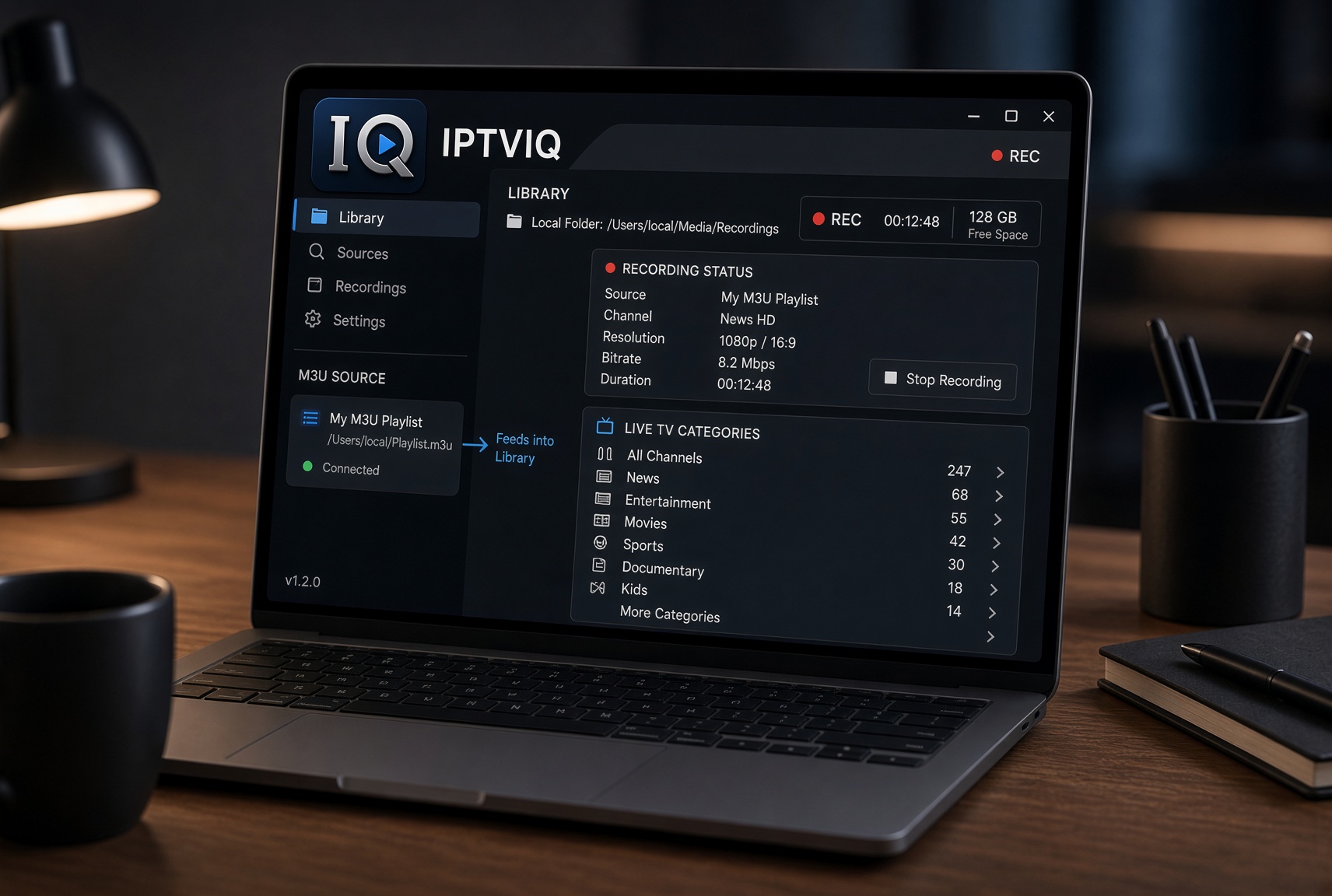
IPTVIQ is native macOS software that accepts M3U playlists and adds organization plus local recording. It runs on Mac models with macOS 14 or later (Universal binary for Apple Silicon and Intel). You bring your own authorized playlist. The app organizes it and lets you save a live stream to a folder you choose.
What the Player Does with M3U
IPTVIQ loads remote or local M3U / M3U8 playlists. Categories, channels, movies and series are parsed and presented as organized sections rather than one flat list. You can also add Xtream Codes accounts, XMLTV guides and Stalker/MAG/Ministra portals alongside the M3U. Multiple sources sit side by side. Each can use its own proxy setting (Direct, HTTP, HTTPS or SOCKS5) for connection and media traffic.

What It Does Not Do
It does not sell or include any channels. There is no content package inside the app. If your M3U does not contain a particular stream, the player cannot create it. Playback stays direct from your provider to the Mac. The free listing means there is no charge for the basic player itself; it does not mean the streams are free.
Local Recording from an M3U Source
Manual DVR lets you record a live stream you are authorized to watch and save the file to a folder you choose on your Mac. This is personal time-shifting only. You remain responsible for rights and local storage. The recording does not go through an IPTVIQ server. Scheduled or EPG-triggered recording is planned and not available yet. For M3U users who want a copy of a program without relying on provider catch-up, the local folder approach is direct.
Organization Beyond a Flat Playlist
Once the M3U is imported, Live TV stays in categories. Movies and Series appear separately. Global search works across the catalog. Continue Watching remembers where you left off. Favorites and history stay per profile. These features turn a raw playlist into a more usable library on macOS.
Guide, Catch-up and Live Tools
Where the source or an accompanying XMLTV file provides guide data, a mini-EPG overlay and Now/Next information appear. Catch-up or watch-from-start remains source-dependent. Numeric channel entry and Recall for the last channel are available. Two streams can play side by side. Smart Recovery detects real playback stalls from brief connection drops and reconnects automatically.
Profiles on a Shared Mac
Separate profiles keep history and favorites private even when the same M3U is loaded. Kids profiles enforce approved-content rules across Home, Search, Guide and playback. The restrictions apply to the whole library.
Current Platforms
The public app today is for macOS 14+. Apple TV is in testing. iOS, iPadOS, Windows, Android and Android TV are planned. Cloud Sync of user state (favorites, resume positions, profiles and Kids rules) is part of the longer roadmap. It would sync settings and library state only; video and recordings stay local or come directly from your provider.
Comparison for M3U Users
| Capability | Typical Basic M3U Player | IPTVIQ Today | Longer Direction |
|---|---|---|---|
| Organized Live + Movies + Series | Rare | Yes | Yes |
| Manual local DVR to folder | Sometimes | Yes | Yes |
| Multiple sources + proxy | Varies | Yes | Yes |
| Continue Watching | Rare | Yes | Yes |
| Mini-EPG / Now Next | Limited | Yes | Yes |
| Profiles + Kids rules | Rare | Yes | Yes |
| Multiview | Rare | Yes | Yes |
| Other platforms | Mixed | macOS only | Planned |
Who Finds It Useful
This player suits people who already maintain one or more M3U playlists and who want them organized on a Mac with the option to record locally. It is practical if you prefer saving a program to your own folder instead of relying only on provider features. It is less useful if you are looking for channels included with the software itself.
Setup Steps
- Download IPTVIQ from the Mac App Store.
- Add your remote or local M3U / M3U8 playlist (and any other sources you use).
- Browse the organized library instead of the raw list.
- Use manual recording to save a live stream to a folder you choose.
Disclaimer
IPTVIQ does not host or supply content. Use only sources you are authorized to access. Recording is for personal time-shifting. Guide accuracy and catch-up availability depend entirely on the provider.
Among the options people consider when looking for the best IPTV player for Mac with M3U support, the ones that stop at opening the playlist leave recording and organization to other tools. IPTVIQ handles the M3U, organizes the catalog and lets you save live streams locally to a folder you control. Your playlist stays yours; the player simply makes using it on macOS more practical.